
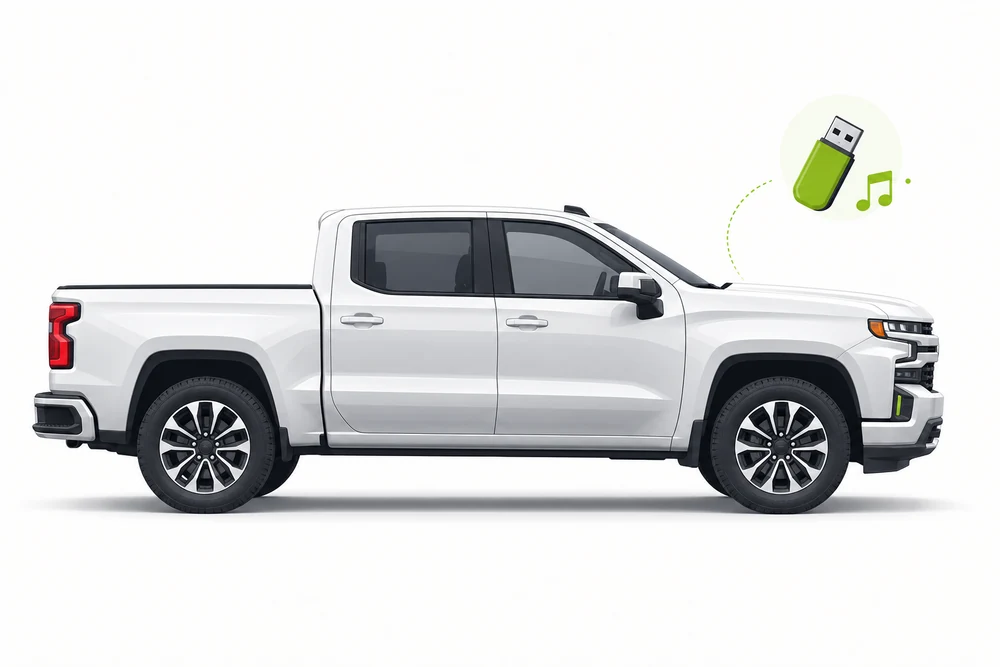
Fix USB music in your Chevrolet Silverado.

Choose your model year to see factory-manual-based USB music guidance. Confirm the exact radio and trim in your owner's manual.

Guide checked and updated July 2026

Chevrolet Silverado profile

Find your Silverado settings

Select the closest year range, then confirm the exact radio in your owner's manual.

USB format & sizeFAT32 is a safe baseline; use exFAT only if the manual allows it
Radio systemChevrolet Infotainment 3
Audio formatsMP3, AAC, FLAC, OGG and others vary by system
Folder setupKeep folders shallow for the first test
Check my music free

No payment Windows 10 & 11

Silverado guidance selected. Confirm the exact settings in your factory manual.

Your 2019–2021 Silverado USB setup

Use these year-range recommendations as a starting point and confirm the exact system in your factory manual.

USB format & sizeFAT32 is a safe baseline; use exFAT only if the manual allows itTreat this as a starting point; verify drive limits in the owner's manual.
Audio formatsMP3, AAC, FLAC, OGG and others vary by systemUSB4Car converts unsupported music when needed.
Radio systemChevrolet Infotainment 3Equipment varies by trim; confirm your exact infotainment system.
Folder setupStart with one shallow folderFolder and indexing limits depend on the radio; check its owner's manual.

What's going wrong?

Common Chevrolet Silverado USB music problems and how to fix them.

The USB port only charges my phone Manual-based troubleshooting

Why it happens: Silverado port locations and functions vary by cab, trim and model year. Some ports are charge-only.

The fix: Use a port marked for data/media in the factory manual. Connect a USB flash drive directly, then select USB in the Audio or Media source list.

The radio says no playable files are on the stick Manual-based troubleshooting

Why it happens: The radio may not support the drive's file system, partition layout or audio codec.

The fix: Try one unpartitioned FAT32 flash drive with a few MP3 files in a shallow folder. Older base radios can be more restrictive than newer infotainment systems.

Some albums or songs are missing Manual-based troubleshooting

Why it happens: A radio may skip unsupported file types or have trouble indexing a very large collection.

The fix: Test a small MP3-only folder first. If it works, add the rest of the collection in smaller folders and keep track names simple.

Music is not listed after I plug in the stick Manual-based troubleshooting

Why it happens: The radio may remain on another source, even after it detects the drive.

The fix: Open Audio or Media and choose USB. On older systems, press MEDIA until the USB device appears as the active source.

For problems shared across every Chevrolet model, see the Chevrolet USB guide.

Check and prepare your music.

USB4Car can check your music and prepare compatible audio files. Confirm your exact vehicle is listed in the app before choosing model-specific settings.

Check my music free $19.99 after your free check

Chevrolet Silverado USB questions

What USB format works in a Chevrolet Silverado?

FAT32 with MP3 files is a good first test across older Silverado radios. Some later systems support more formats and file systems; check the manual for your radio and trim.

Why does my Silverado USB port charge but not play music?

Some Silverado USB ports are charge-only. Try the data/media port identified in the owner's manual, then select USB from the Audio or Media source list.

Can a Silverado play FLAC from USB?

Some newer Chevrolet infotainment systems list FLAC support, but the supported formats depend on the exact radio. MP3 is the safer choice when the system is unknown.

How do I select USB music in a Silverado?

Open Audio or Media and choose USB. On some older radios, press MEDIA to cycle through sources until the connected device appears.

Owner's manuals and source references

USB support depends on the vehicle's year, trim and infotainment system. Check the factory manual for your exact vehicle.