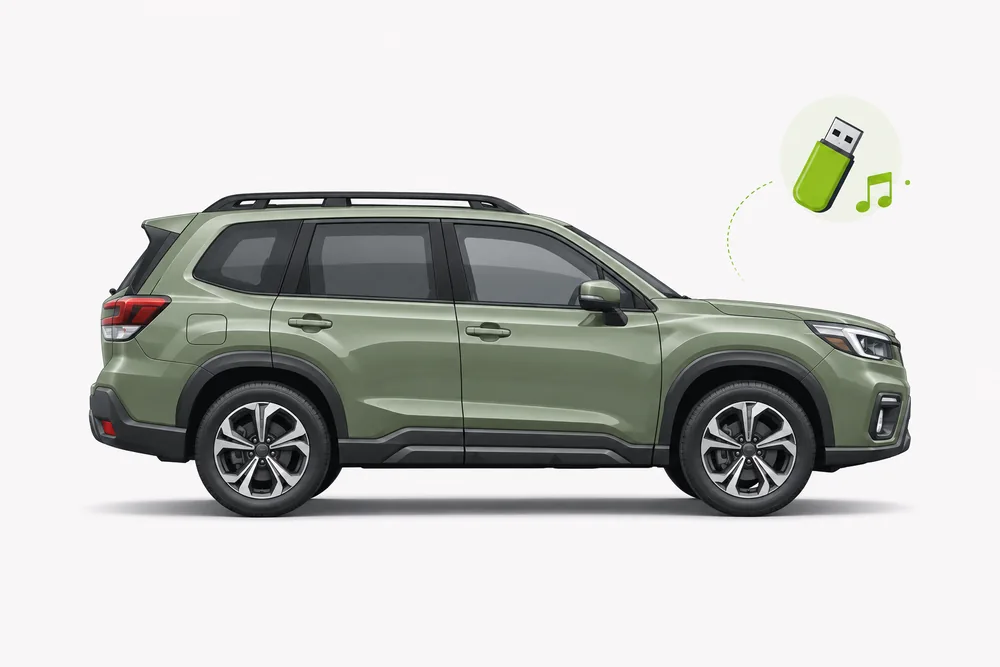
Forester guidance selected. Confirm the exact settings in your factory manual.
Your 2019–2024 Forester USB setup
Use these year-range recommendations as a starting point and confirm the exact system in your factory manual.
USB format & sizeTry one unpartitioned FAT32 drive; check the matching manual before using other formatsTreat this as a starting point; verify drive limits in the owner's manual.
Audio formatsUSB audio availability and codec support depend on the exact radio; MP3 is a useful first testUSB4Car converts unsupported music when needed.
Radio systemSTARLINK Multimedia; screen and ports vary by trimEquipment varies by trim; confirm your exact infotainment system.
Folder setupStart with one shallow folderFolder and indexing limits depend on the radio; check its owner's manual.
Subaru ForesterUSB
♪USB musicPLAYING
01Road Trip3:42
02Open Highway4:08
03Summer Drive3:16
RADIOMEDIAMENU
What's going wrong?
Common Subaru Forester USB music problems and how to fix them.
?My Forester USB port charges but does not play musicManual-based troubleshooting
Why it happens: The Forester can have ports with different functions, and equipment varies by year and trim.
The fix: Check the factory manual for the port that carries data or media. Connect a flash drive directly, then select USB in Subaru STARLINK.
?USB appears in my Forester, but no songs show upManual-based troubleshooting
Why it happens: The radio may not recognize the file system, partition layout or audio codec, or it may still be indexing.
The fix: Try one unpartitioned FAT32 drive with a few MP3 files in one shallow folder. Expand the library after this test works.
?Some music files are missing in my ForesterManual-based troubleshooting
Why it happens: Mixed formats, deep folders and large collections can be difficult for some infotainment systems to index.
The fix: Test a small MP3-only folder and keep names simple. Add albums in batches and consult the manual for file and folder limits.
?My Forester does not switch to USB audioManual-based troubleshooting
Why it happens: A connected drive may not become the active source automatically.
The fix: Open the Audio, Media or Entertainment screen and choose USB. In Subaru STARLINK, check the source list and browse to a folder or track.
For problems shared across every Subaru model, see the Subaru USB guide.
Check and prepare your music.
USB4Car can check your music and prepare compatible audio files. Confirm your exact vehicle is listed in the app before choosing model-specific settings.
It depends on the model year and infotainment system. FAT32 with a few MP3 files is a reasonable first test; confirm other file systems and codecs in the factory manual.
Why does my Subaru Forester USB port only charge?
Some ports are charge-only while another port carries media data. Check the manual for the correct connection for your trim, then select USB as the audio source.
How do I play music from USB in a Subaru Forester?
Connect a flash drive to the media/data port, open Subaru STARLINK's source menu, choose USB and browse to the music. Controls and port locations vary by year and trim.
Can every Forester play FLAC or exFAT from USB?
No single answer covers every radio generation. Check the owner's manual for the exact infotainment system; use MP3 on FAT32 as a conservative troubleshooting test.
Owner's manuals and source references
USB support depends on the vehicle's year, trim and infotainment system. Check the factory manual for your exact vehicle.
 USB4Car