 USB4Car
The best USB format for car music
Format a USB stick the wrong way and the car ignores it completely — no error, no hint, nothing. Format it right and it plays in practically anything with a USB port. Here's the straight answer, including the Windows trap that catches almost everyone with a stick over 32 GB.
Guide checked and updated July 2026
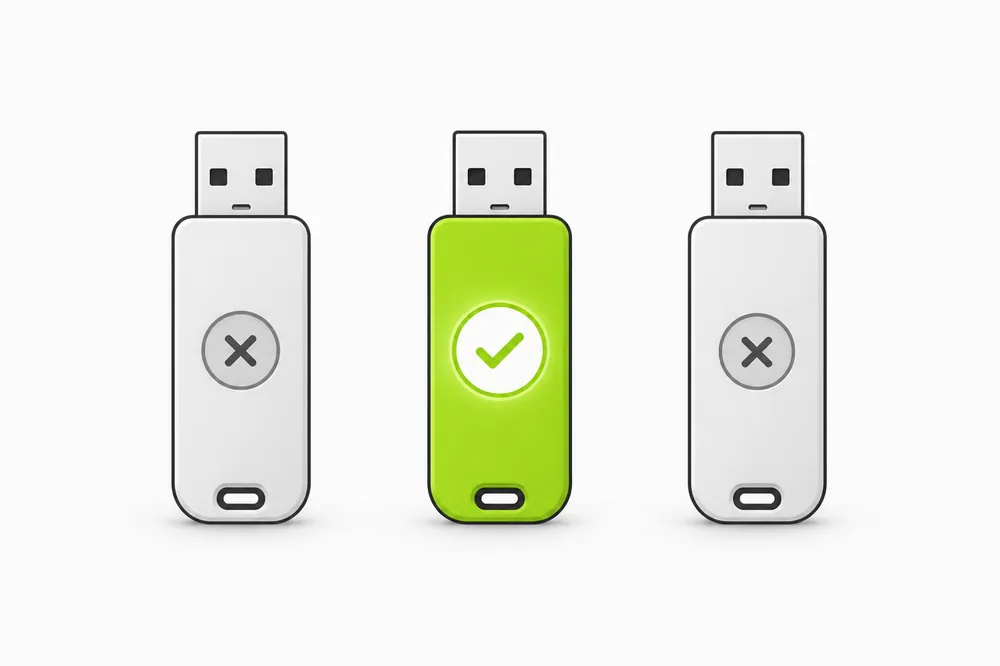
FAT32 is the best USB format for car music, full stop. It's the only format that effectively every car radio since the early 2000s can read. exFAT works only in newer cars (roughly 2019 on). NTFS works in almost no car at all. If you want one stick that plays everywhere: FAT32, 32 GB or less, MBR partition layout.
FAT32 vs exFAT vs NTFS in cars
The three formats a stick might carry — and how car radios treat them:
The partition layout matters too: radios expect a single partition on an MBR layout. Sticks that held a bootable installer, or ship with GPT, can be rejected even when they're FAT32.
The format is half the story
A correctly formatted stick can still refuse to play if what's on it doesn't match the radio:
File types still matter
Why it happens: FAT32 gets the stick recognized — but the radio still only plays audio formats it supports. MP3 plays everywhere; FLAC, ALAC, OGG and OPUS are skipped by most radios built before ~2019.
✓ The fix: Keep everything as MP3 for maximum compatibility. Convert only what needs converting — re-encoding an MP3 again just loses quality.
Folder depth and file limits
Why it happens: Radios stop reading past a folder depth (often 6–8 levels) and past a file count (as low as a few thousand songs on older units).
✓ The fix: Keep it to Artist → Album → songs, and split huge collections across sticks if the radio stops partway.
Allocation unit size (rarely)
Why it happens: A handful of picky radios stumble over unusual cluster sizes chosen during formatting.
✓ The fix: Leave “allocation unit size” at the default when formatting — don't tune it.
USB4Car formats it right, every time.
FAT32, single partition, MBR layout, default cluster size — and it works on sticks of any size, including the big ones Windows refuses to format as FAT32. Then it fills the stick with music your exact car can play.
How to format a USB stick as FAT32
On Windows, for sticks up to 32 GB:
- Copy anything important off the stick — formatting erases everything on it.
- Open File Explorer and right-click the USB drive.
- Choose Format → File system: FAT32 → leave allocation unit size at default → Start.
- Over 32 GB? Windows only offers exFAT and NTFS there. Either use a 32 GB stick (plays in everything) or let USB4Car format the big stick as FAT32.
- Copy your music on as MP3 files in simple folders, then safely eject.
Skip the disk tools.
USB4Car prepares the stick end to end — the right format for your car, the right files, the right order. One click, a few minutes.
Free trial shows every problem it would fix — no payment needed.
Related questions
Is FAT32 or exFAT better for car music?
FAT32, unless you know your car is recent. FAT32 plays in effectively everything since the early 2000s; exFAT only in cars from roughly 2019 on. If one stick has to work in several cars, FAT32 wins every time.
How do I format a 64 GB or 128 GB stick as FAT32?
Windows hides the FAT32 option above 32 GB, but the format itself handles large sticks fine. Third-party formatters can do it — or USB4Car does it automatically as part of preparing the stick.
Does NTFS work in any car?
A few rare head units read NTFS, but the overwhelming majority don't — the stick is simply ignored. There's no advantage to NTFS for music anyway; use FAT32.
What's the MBR vs GPT thing about?
It's how the stick's partition is laid out. Car radios expect the old-school MBR layout with a single partition. GPT — common on sticks that held a Windows installer — gets the stick rejected in many cars even when it's FAT32.
Related guides
USB not recognized in car
The stick doesn't show up at all? The six causes, ranked by how common they are.
Read the guide →“No compatible music files found”
Stick detected, nothing plays — what the radio is really telling you.
Read the guide →Ford's hidden MBR rule
SYNC can't see GPT sticks at all — the F-150 guide explains the partition trap.
Read the guide →BMW's FAT32-only years
Which BMWs read exFAT and which insist on FAT32 — the X3 guide, generation by generation.
Read the guide →Songs play in the wrong order
Format is fine, order is chaos — the two-minute fix.
Read the guide →