 USB4Car
Songs play in the wrong order? Here's the two-minute fix.
Track 1, then track 10, then track 11, then track 2 — every album scrambled the same maddening way. Your car isn't shuffling. It's sorting the only way it knows how, and once you see it, the fix is genuinely two minutes per album.
Guide checked and updated July 2026
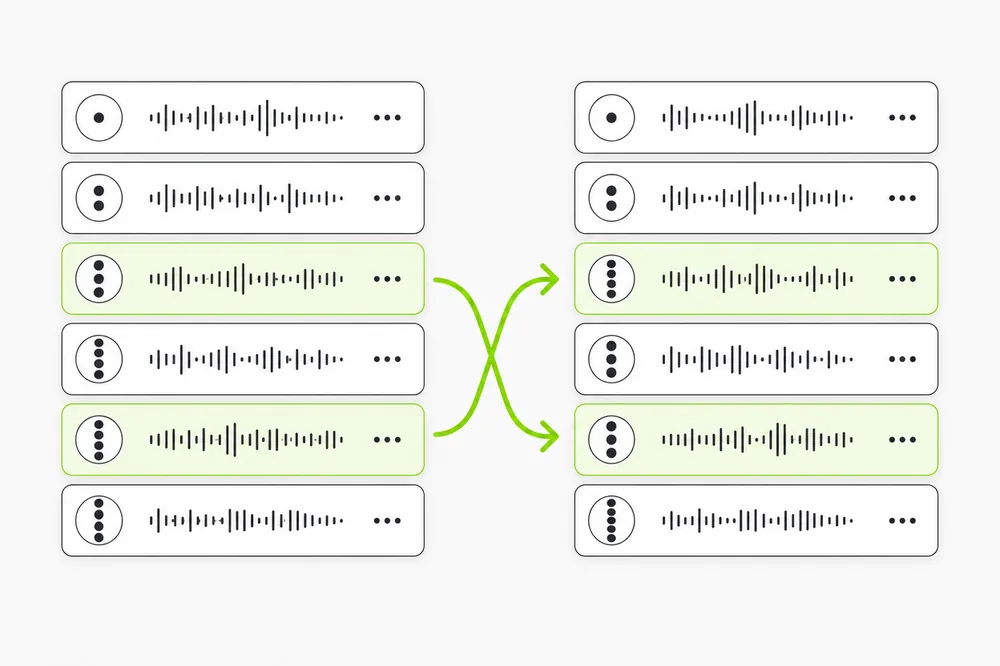
Most car radios ignore the track numbers stored inside songs and sort by file name, alphabetically — so “Track 10” comes before “Track 2”. Rename every file to start with a two-digit track number (01, 02, 03 …) and the order is fixed on every radio, forever. A minority of older radios instead play files in the order they were copied to the stick — recopy each album folder in one go and they behave too.
The three ways radios scramble your music
1. Alphabetical file-name sorting (most radios)
Why it happens: The radio sorts by file name and ignores the track number stored in the song's tags. Alphabetically, “Track 10” sorts before “Track 2”, and songs without numbers play in whatever order their titles happen to fall.
✓ The fix: Rename files to start with a two-digit number: “01 Song.mp3”, “02 Song.mp3”… Two digits matter — “1” alone recreates the same problem at track 10.
2. Copy-order playback (some older radios)
Why it happens: A minority of older radios play files in the order they were written to the stick's file table — which, after months of adding and deleting, resembles nothing at all.
✓ The fix: Copy each album folder to the stick in one operation, in the right order. For a stick that's been edited many times: reformat and copy everything fresh — which also fixes cause #1 if the files are numbered.
3. Shuffle is on
Why it happens: Obvious, but it catches everyone eventually: many radios have separate shuffle settings for folders and for the whole stick, and a steering-wheel button toggles it without much fanfare.
✓ The fix: Check the playback screen for a shuffle icon before renaming anything. Toggle it off for both folder and all-songs modes.
USB4Car numbers everything for you.
It reads the real track numbers from your music's tags, names every copied file 01, 02, 03 … and copies albums folder by folder in order — so both kinds of radio play everything the way the artist intended.
Fix the order by hand
Works on every radio ever made:
- Put each album in its own folder — Artist → Album → songs.
- Rename every song to start with its two-digit track number: “01 Intro.mp3”, “02 Main Theme.mp3” …
- Ten-plus discs or compilations: use three digits (001, 002 …) so 100 doesn't sort before 20.
- If your radio plays in copy order: reformat the stick, then copy the album folders one at a time, in order.
- Turn shuffle off — folder shuffle and all-song shuffle are often separate settings.
Two minutes per album — or one click total.
USB4Car renames and orders your entire collection in one pass, using the track numbers already stored in your music.
Free trial shows every problem it would fix — no payment needed.
Related questions
Why does my car ignore track numbers?
Reading tags takes work, so most radios simply sort by file name. The track number inside the file is ignored — only the name counts. Numbering the file names sidesteps it on every radio.
Why does “Track 10” play before “Track 2”?
Alphabetical sorting compares character by character: “1” in “10” sorts before “2”. Two-digit numbers — 02, 10 — sort correctly everywhere.
Do playlists fix the order instead?
Sometimes — radios that support M3U playlists follow the playlist's order. But playlist support is spotty and paths break easily; numbered file names work on everything, playlists included.
Related guides
Toyota Corolla USB music
The most famous wrong-order radio of them all — the Corolla-specific guide.
Read the guide →Car only shows some songs
Songs aren't just out of order — some are missing entirely? Start here.
Read the guide →Best USB format for car music
Set the stick up right before copying — FAT32 vs exFAT vs NTFS.
Read the guide →Hyundai i30 track order fix
The i30 sorts by file name on every generation — numbering that sticks.
Read the guide →