 USB music, set up right
Toyota-specific settings
USB music, set up right
Toyota-specific settings
Find the exact USB music settings for your Toyota.
Pick your model. USB4Car applies its compatible format, file layout and audio settings automatically.
Popular Toyota models
See allChoose your Toyota model
Find your model for generation-specific USB rules, common problems, and fixes.
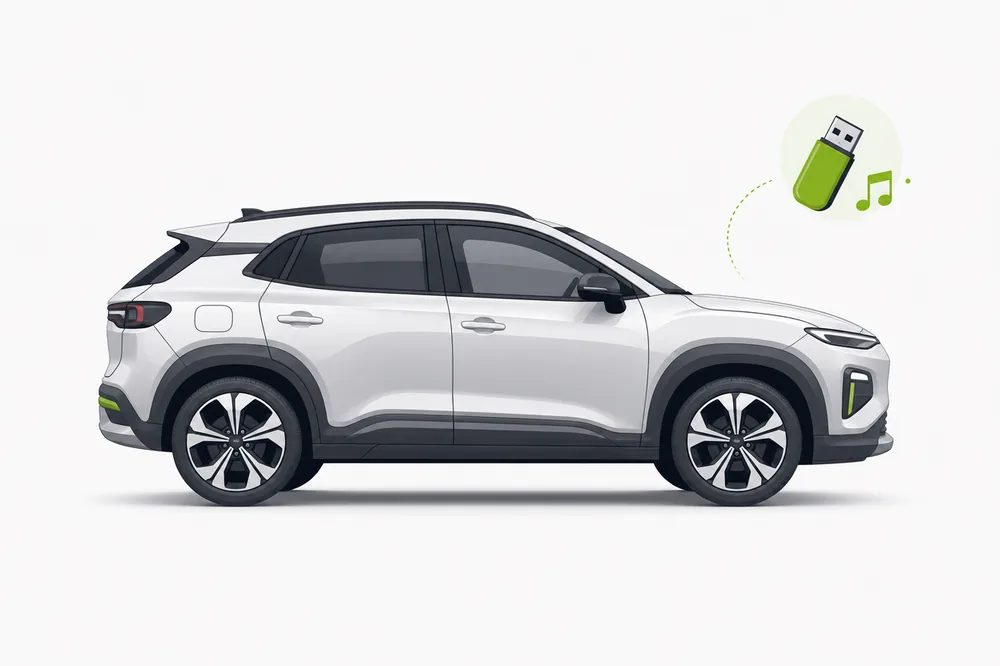
RAV4
Format rules for every RAV4 generation — and why big sticks fail on 2013–2018 models. Explore the guide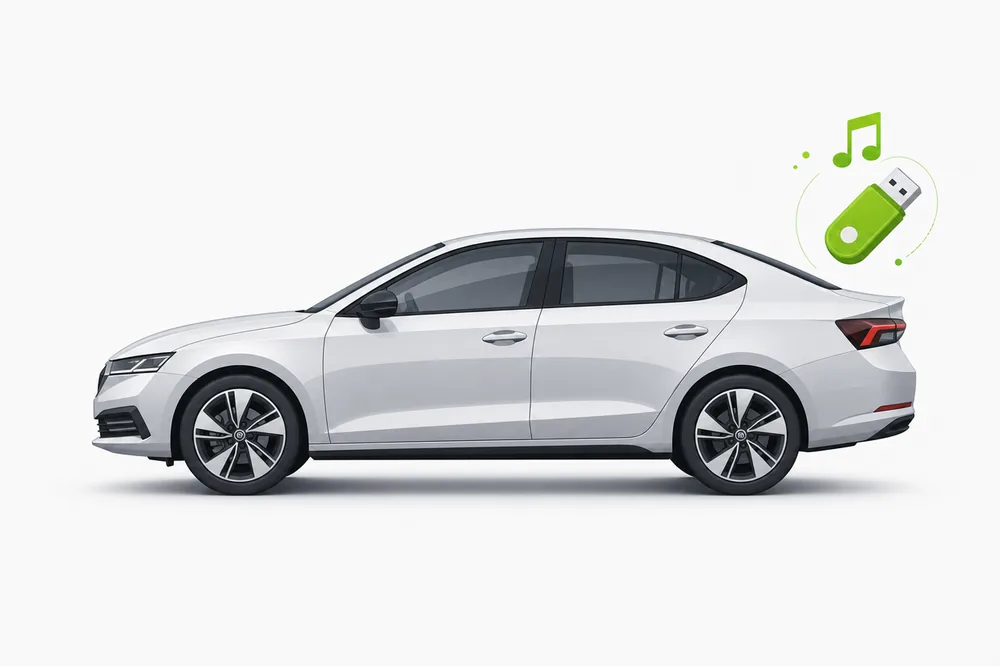
Corolla
Why the Corolla plays albums in the wrong order, and the format rules per generation. Explore the guide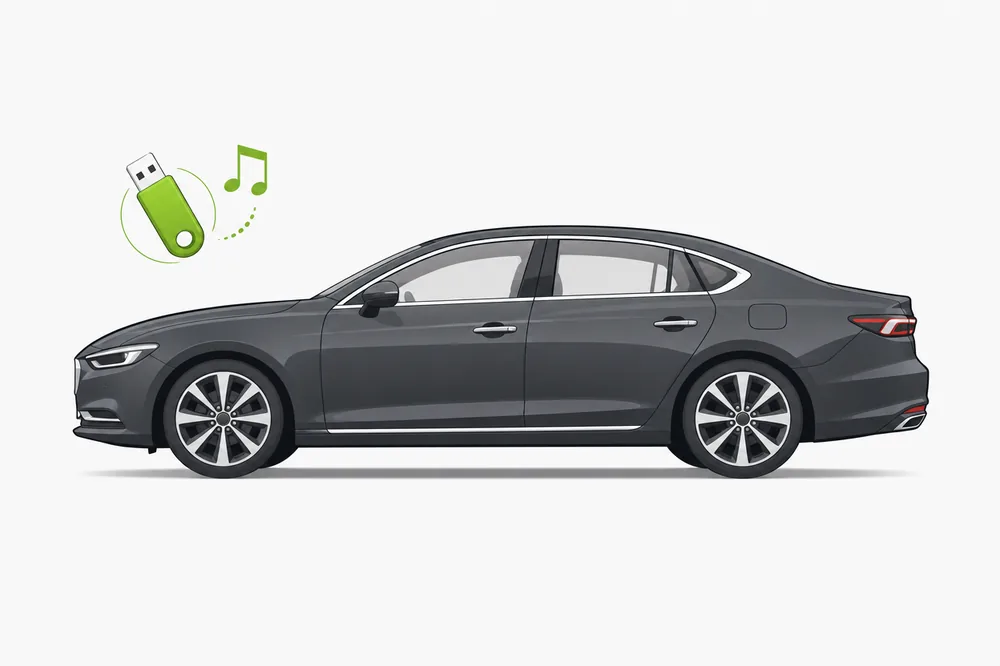
Camry
The 16 GB trap on older Camrys, and what each generation actually plays. Explore the guide
Highlander
Family-sized music collections meet file limits — what the Highlander reads per generation. Explore the guide
Tacoma
USB music rules for every Tacoma generation, from work-truck radios to the 2024 redesign. Explore the guide
Prius
Why uneven volume is extra annoying in a quiet hybrid, and the format rules per generation. Explore the guide
4Runner
The head unit that barely changed for a decade — and what that means for your USB stick. Explore the guide
Tundra
Long-haul collections, the 32 GB wall, and the big 2022 system change. Explore the guide
Sienna
One stick for the whole family — kids' songs, road trip playlists and the file limits that bite. Explore the guide
Yaris
Basic radios with strict limits — the exact rules that make a Yaris stick just work. Explore the guide USB4Car for Windows
Let USB4Car set it up
The right format, file layout and audio settings—prepared automatically for your car.Most Toyota radios built before 2019 need a USB stick of 32 GB or less, set up as FAT32, with music saved as MP3 files. Newer Toyotas (2019 and later) also accept bigger sticks and more file types. If your Toyota refuses to play from USB, the stick's setup or the file type is almost always the reason — not the stick itself, and not the car.
My Toyota won't play music from USB
Find your symptom — every one of these has a fix.
The USB stick isn't detected at all
Why it happens: The stick is set up as exFAT or NTFS — the way most sticks over 32 GB come out of the box. Toyota radios from before 2019 only read FAT32 sticks, and some also reject sticks with an unusual partition layout.
✓ The fix: Use a stick of 32 GB or less, set it up as FAT32 with a standard (MBR) layout, and plug it straight into the port — extension cables and hubs cause detection failures on some models.
The radio says “No Music Files Found”
Why it happens: The radio can read the stick, but nothing on it is playable: the songs are in a file type it doesn't support (often FLAC or Apple Lossless), or they're buried deeper in folders than the radio will look.
✓ The fix: Make sure the music is in MP3 format (or another format your model year supports — see the format table below) and keep the folders shallow: Artist → Album → songs is as deep as it should go.
Only some songs appear or play
Why it happens: The missing songs are in a file type the radio doesn't support — usually FLAC on a pre-2019 radio, Apple Lossless, or old copy-protected iTunes purchases. Or you've hit the radio's file limit: on older models it stops reading after as few as 3,000 songs in 400 folders.
✓ The fix: Convert the missing songs to MP3 (keep the ones that already play as they are — converting an MP3 again only loses quality), and stay under your radio's limits — or split the collection across two sticks.
Songs play in the wrong order
Why it happens: Many Toyota radios sort by file name, not by the track numbers stored inside the songs. “Track 10” sorts before “Track 2”.
✓ The fix: Rename the files so they start with a two-digit track number — 01, 02, 03 … — and keep each album in its own folder.
The radio keeps “reading” or indexing forever
Why it happens: Every time the stick is plugged in, the radio has to index everything on it. Huge collections, deeply nested folders, non-music files mixed in, and slow or failing sticks can stretch that from seconds to minutes — or forever.
✓ The fix: Keep only music on the stick, keep folders flat, and stay well under the radio's file limits. If a healthy stick still hangs, the stick itself is often the problem — name-brand sticks index noticeably faster than cheap no-name ones.
Song titles show as “Unknown” or as garbled text
Why it happens: The song's name tags are saved in a newer version (ID3v2.4) or a text encoding that older Toyota radios can't read.
✓ The fix: Re-save the tags as ID3v2.3 — the version every Toyota radio understands. Tools like Mp3tag can do this; USB4Car does it automatically for every song it copies.
The stick works at home but not in the car
Why it happens: Computers happily read exFAT and NTFS sticks, so everything looks fine at home. The radio is pickier — and some sticks also carry an unusual partition setup the radio rejects.
✓ The fix: Set the stick up fresh as FAT32 with a standard (MBR) layout. Then copy the music back on and eject safely before unplugging.
Skip the troubleshooting.
USB4Car applies every fix on this page automatically — set up for your exact Toyota, in a few minutes. The free trial shows what it would fix before you pay.
What USB music formats do Toyota cars support?
What your Toyota can play depends on the radio it left the factory with. Find your model years below:
Files bought from iTunes before 2009 (protected “M4P” files) and Apple Lossless, OGG or OPUS files won't play on most Toyota radios regardless of year — they need to be converted to MP3 first.
The manual checklist
Want to do it by hand? This is the full checklist for a stick that plays in any Toyota:
- Use a USB stick of 32 GB or less (for radios before 2019).
- Copy anything important off the stick, then format it as FAT32.
- Convert songs that aren't MP3 files to MP3 — but never re-convert songs that already are MP3.
- Fix the name tags: ID3v2.3, no odd characters, track numbers filled in.
- Name files with track numbers first (01, 02 …) and keep folders simple: one folder per artist or album.
- Safely eject the stick before pulling it out — half-written files are a common cause of “broken” songs.
One button instead.
USB4Car does this entire checklist for you: it knows what your exact Toyota can play, sets the stick up correctly, converts only what needs converting, repairs the name tags and puts everything in the right order. One button, a few minutes, done.
Free trial shows every problem it would fix — no payment needed.
Toyota USB music questions
What USB format does a Toyota use?
Toyota radios before 2019 read FAT32 sticks only. From 2019 on, most also read exFAT. NTFS — the standard for Windows hard drives — is never supported. If you're unsure, FAT32 on a 32 GB stick works in effectively every Toyota.
Why is my Toyota not playing music from USB?
The three most common reasons: the stick is set up as exFAT or NTFS instead of FAT32, the songs are in a file type the radio doesn't play (FLAC, ALAC, protected iTunes files), or the collection exceeds the radio's file and folder limits. All three are fixable without buying anything new.
What size USB stick works in a Toyota?
For radios before 2019: 32 GB or less, and on some older models (like the 2007–2013 Camry) certain trims only accept 16 GB. Newer Toyotas handle 256 GB sticks without complaint.
Can a Toyota play FLAC files from USB?
Only newer ones. Entune 3 (roughly 2019–2022) and Toyota Audio Multimedia (2023+) play FLAC on most trims. Anything older will skip FLAC files silently — convert them to MP3 for older radios.
Does the brand of USB stick matter?
Barely. Any name-brand stick works once it's set up correctly. Very cheap no-name sticks fail more often — not because Toyota rejects them, but because they corrupt files.
More USB music help
Not Toyota-specific — these guides apply to every car.
USB not recognized in car
The six causes, ranked by how common they are — and the fix for each.
Read the guide →Best USB format for car music
FAT32 vs exFAT vs NTFS — the honest answer for every car age.
Read the guide →Car only shows some songs
Where the missing half of your collection went, and how to get it back.
Read the guide →Songs play in the wrong order
Why radios ignore track numbers — and the two-minute fix.
Read the guide →“No compatible music files found”
What the error really means, and the four causes behind it.
Read the guide →Make your Toyota play everything.
USB4Car sets up the stick, converts what needs converting and fixes the rest automatically.
Browse USB music guides by manufacturer
Explore formats, limits and setup tips for other popular car brands.