 USB4Car
How to play music from a USB stick in your car
You've got a stick full of songs — now the car has to actually play them. Usually that's two button presses. When it isn't, it's almost always one of a handful of small things: the wrong port, a source the radio hasn't switched to, or a stick set up in a way the radio can't read. Here's the playbook.
Guide checked and updated July 2026
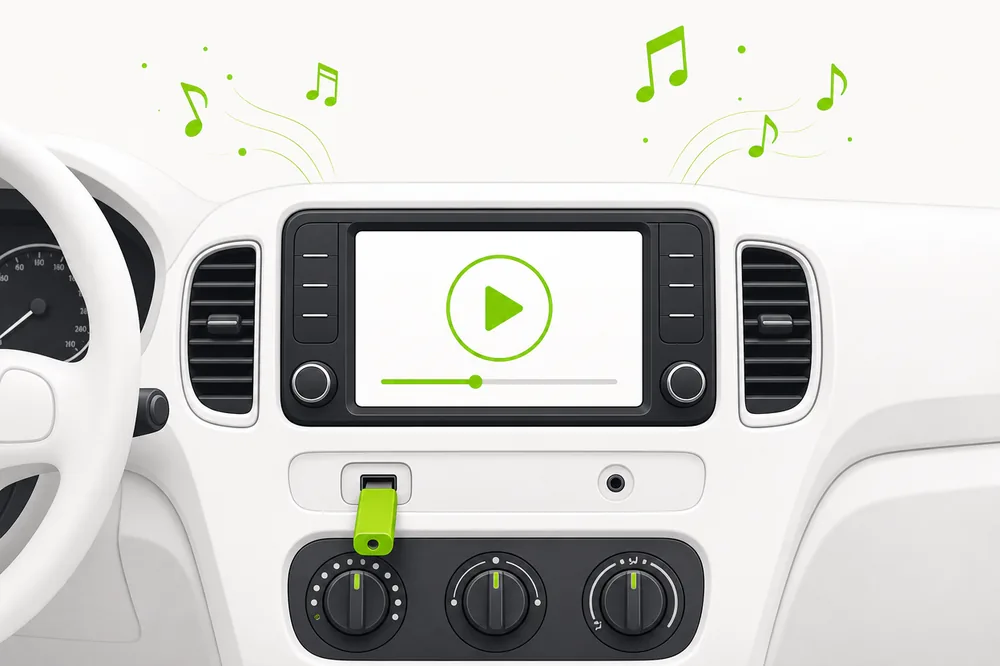
Plug the stick into the car's media USB port (the one marked with a music or media icon — not every port plays audio), then press the radio's Source, Media or Mode button until USB appears. The car indexes the stick for a few seconds and starts playing. If nothing happens, the stick's format is the usual culprit — FAT32 fixes it.
Playing USB music, and fixing it when it won't
The happy path first, then the three silences and what each one means:
1. Find the media port — not all USB ports play music
Why it happens: Many cars have two or three USB ports, and only one is wired to the radio; the rest are charge-only. Center console and glovebox ports are the usual media ports; the ones in the back seat almost never are.
✓ The fix: Look for the port marked with a music note, media icon or the word USB near the radio. If in doubt, try each port in turn and give the radio ten seconds per port.
2. Switch the source — the radio won't jump on its own
Why it happens: Most radios keep playing FM or Bluetooth when a stick is inserted. USB is just another input, like AUX — you have to select it.
✓ The fix: Press Source / Media / Mode (or tap the sources list on a touchscreen) and cycle to USB. On many cars the option only appears once a stick is detected — if USB never shows up, the radio isn't seeing the stick at all: see point 4.
3. Browse by folder, not just track skip
Why it happens: With hundreds of songs, the skip button is useless. Every radio has a browse mode — folder list, list button, or a rotary knob press — that walks your Artist → Album folders directly.
✓ The fix: Name folders the way you want to find them: the radio shows folder names, not playlist artwork. Simple Artist → Album layouts browse fastest.
4. Silence type A: the radio never shows USB
Why it happens: The stick isn't being detected — nearly always exFAT/NTFS formatting, a stick bigger than the radio's limit, or a charge-only port.
✓ The fix: Reformat as FAT32 (single partition, MBR) and use 32 GB or less for cars built before ~2019. Full diagnosis in our “USB not recognized” guide.
5. Silence type B: USB shows, then “no playable files”
Why it happens: The radio reads the stick fine but can't play what's on it — FLAC/ALAC files, DRM-protected tracks, or music buried too deep in folders.
✓ The fix: Convert to MP3, unzip everything, flatten the folders to Artist → Album. USB4Car does all three automatically.
6. Silence type C: it plays, but stops or stutters
Why it happens: Half-written files from an unsafe eject, a failing stick, or a loose extension cable between stick and port.
✓ The fix: Re-copy with a safe eject, plug the stick in directly (no hubs or extensions), and test the stick on a computer if problems persist.
Make the stick the car wants — automatically.
USB4Car prepares the stick so the car-side steps are the only steps: right format, right files, right folders, verified before you leave the house. Pick your car, plug in a stick, press one button.
Playing USB music in your car, step by step
From loaded stick to playing music in under a minute:
- Plug the stick into the media USB port — directly, no hub or extension cable.
- Turn on the ignition; give the radio ~10 seconds to index the stick (big libraries take longer on first insert).
- Press Source / Media / Mode until USB appears, or pick USB from the touchscreen source list.
- Open browse / folder view and navigate Artist → Album, or just press play for everything in order.
- No USB option, error message, or missing songs? Jump to the matching silence type above — each has a two-minute fix.
The car side is easy when the stick is right.
Nine out of ten “USB won't play” problems are made on the computer, not in the car. USB4Car's free scan shows what your stick would trip over — before you're sitting in the driveway wondering.
Free trial shows every problem it would fix — no payment needed.
Related questions
How do I play music through USB in my car?
Plug the stick into the media USB port, then press the Source or Media button until USB is selected. The radio indexes the stick and plays. If USB never appears as a source, the radio isn't detecting the stick — reformatting as FAT32 fixes that in most cases.
Why is my USB not playing music in my car?
Three layers, in order: the radio doesn't see the stick (format/size problem), the radio sees it but finds nothing playable (file format problem), or playback is broken (damaged files or connection). Each has its own guide — start with “USB not recognized” if the source list never shows USB.
Can I play music from my phone through the car's USB port?
Plugging a phone into the media port usually starts Android Auto or CarPlay rather than reading the phone as a stick — which is fine, but it's a different feature. A dedicated USB stick is simpler: no cables, no app, no battery drain, and your phone stays free.
Does USB sound better than Bluetooth in the car?
Yes, measurably. Bluetooth compresses audio a second time on its way to the radio; USB plays your files bit-for-bit. USB also survives dead phone batteries and never drops out in a tunnel.
Related guides
How to put music on a USB stick
Step one, done right: formats, folders and the streaming-app trap.
Read the guide →USB not recognized in car
The radio never shows USB as a source? Six causes, ranked by likelihood.
Read the guide →“No compatible music files” error
USB shows up but nothing plays — the file-side fixes.
Read the guide →Songs play in the wrong order
It plays, but track 11 comes first? The sorting fix.
Read the guide →Toyota USB music guide
Port locations, source buttons and quirks for ten popular Toyota models.
Read the guide →